1. Login To Back Office; Dashboard
登录后台;主页
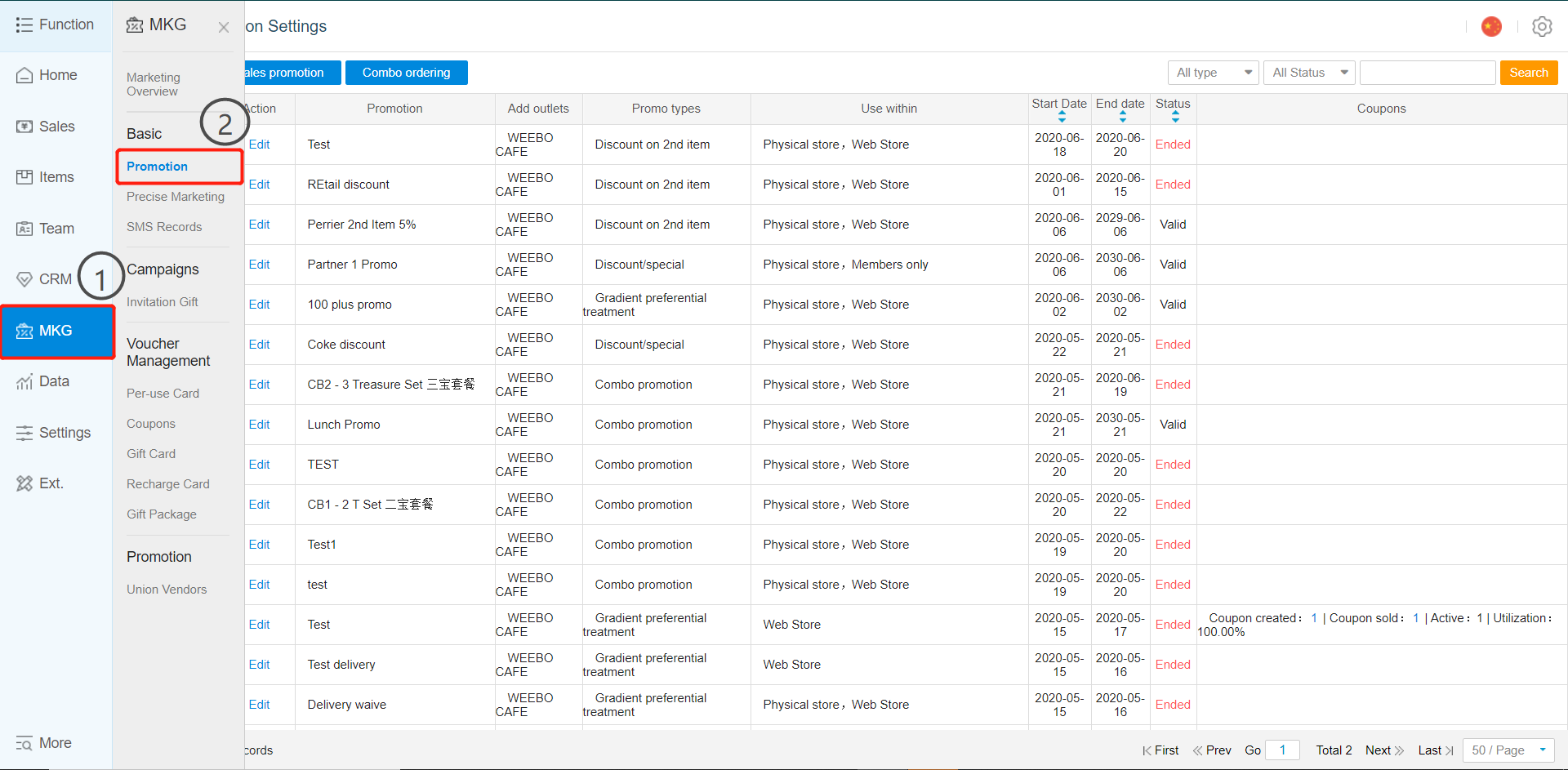 2. Select Promotion under MKG Tab
在 MKG 标签下选择“促销”
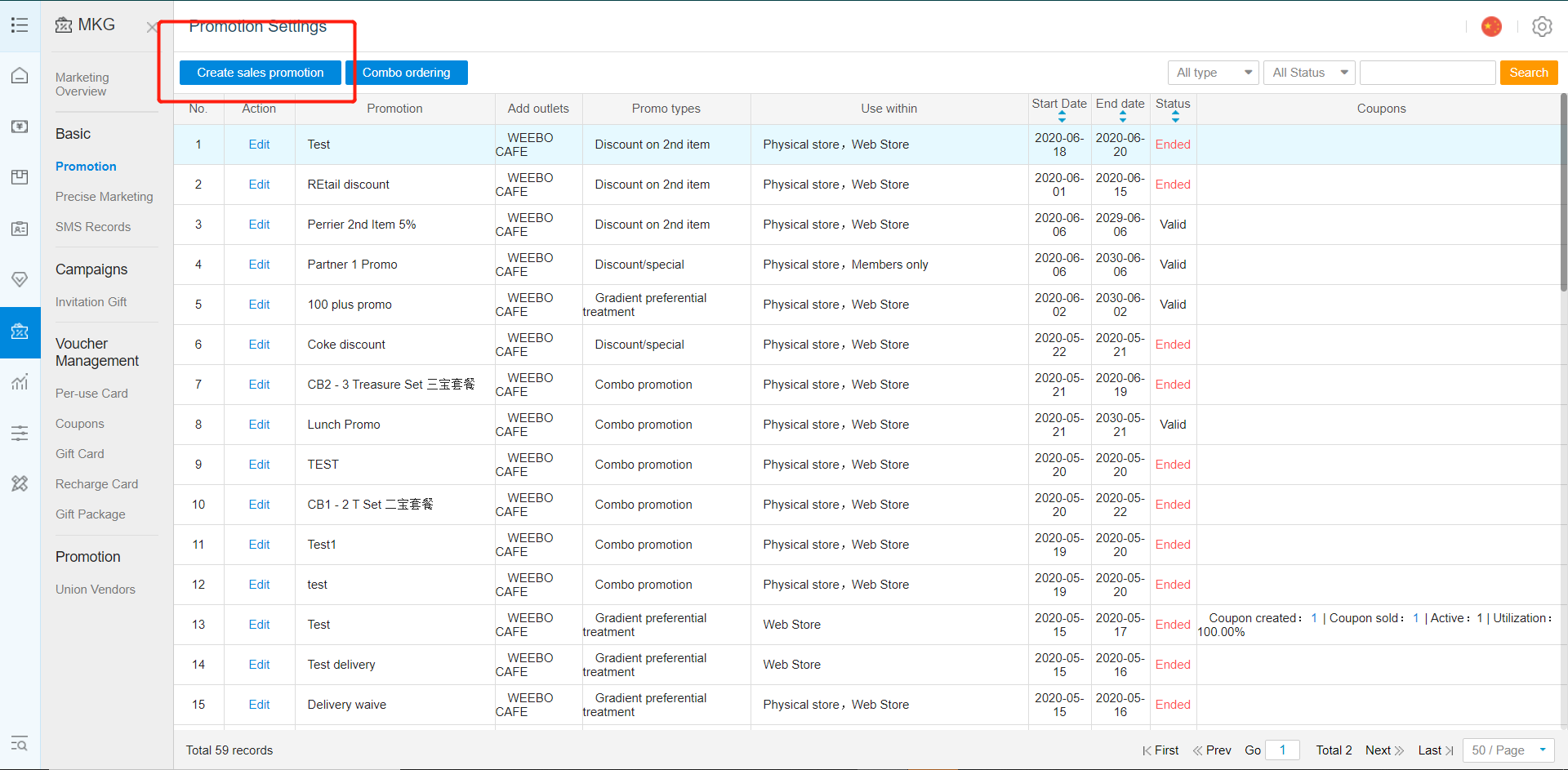
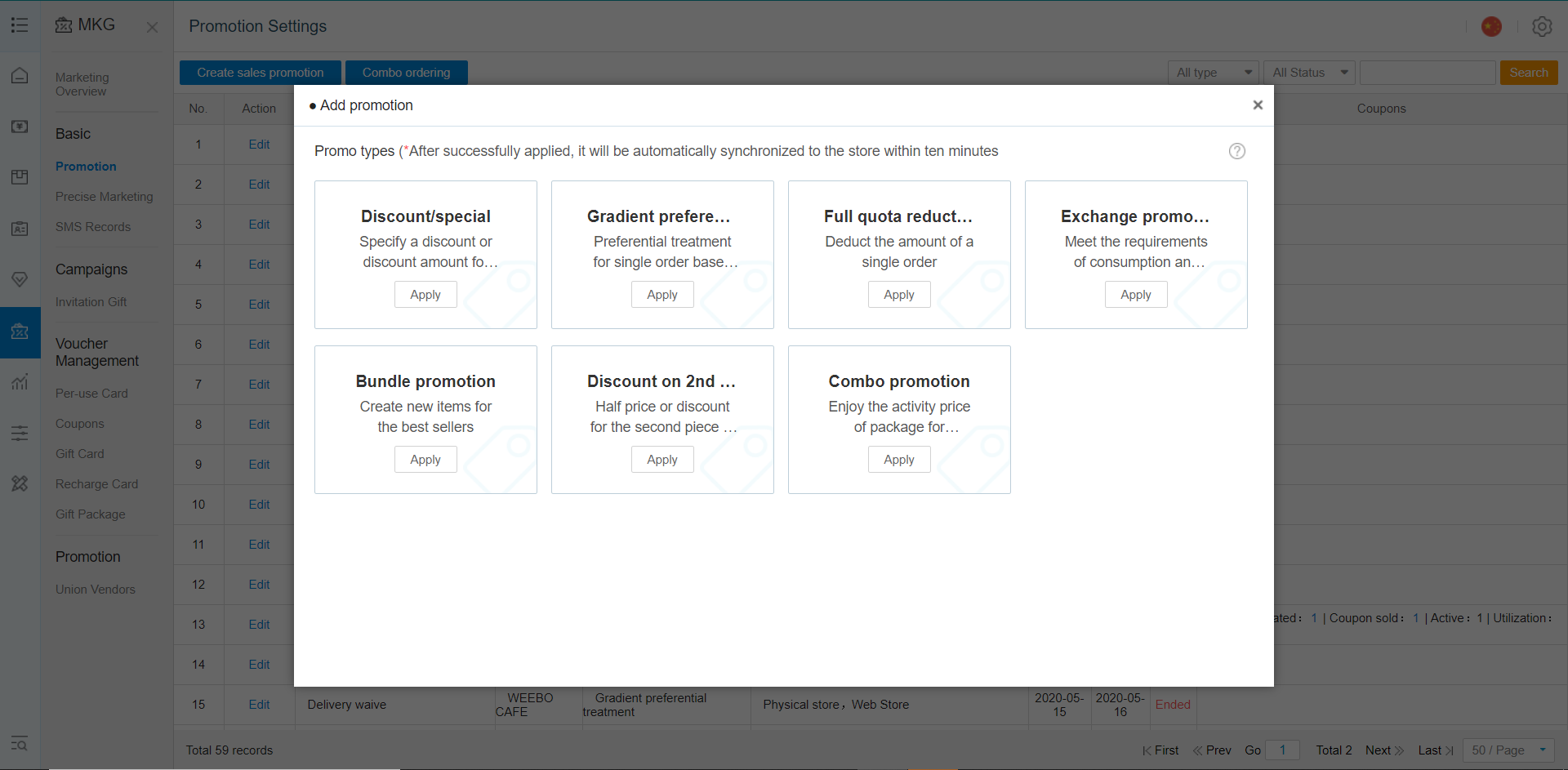 3. Click Add Promotion
点击“添加促销”
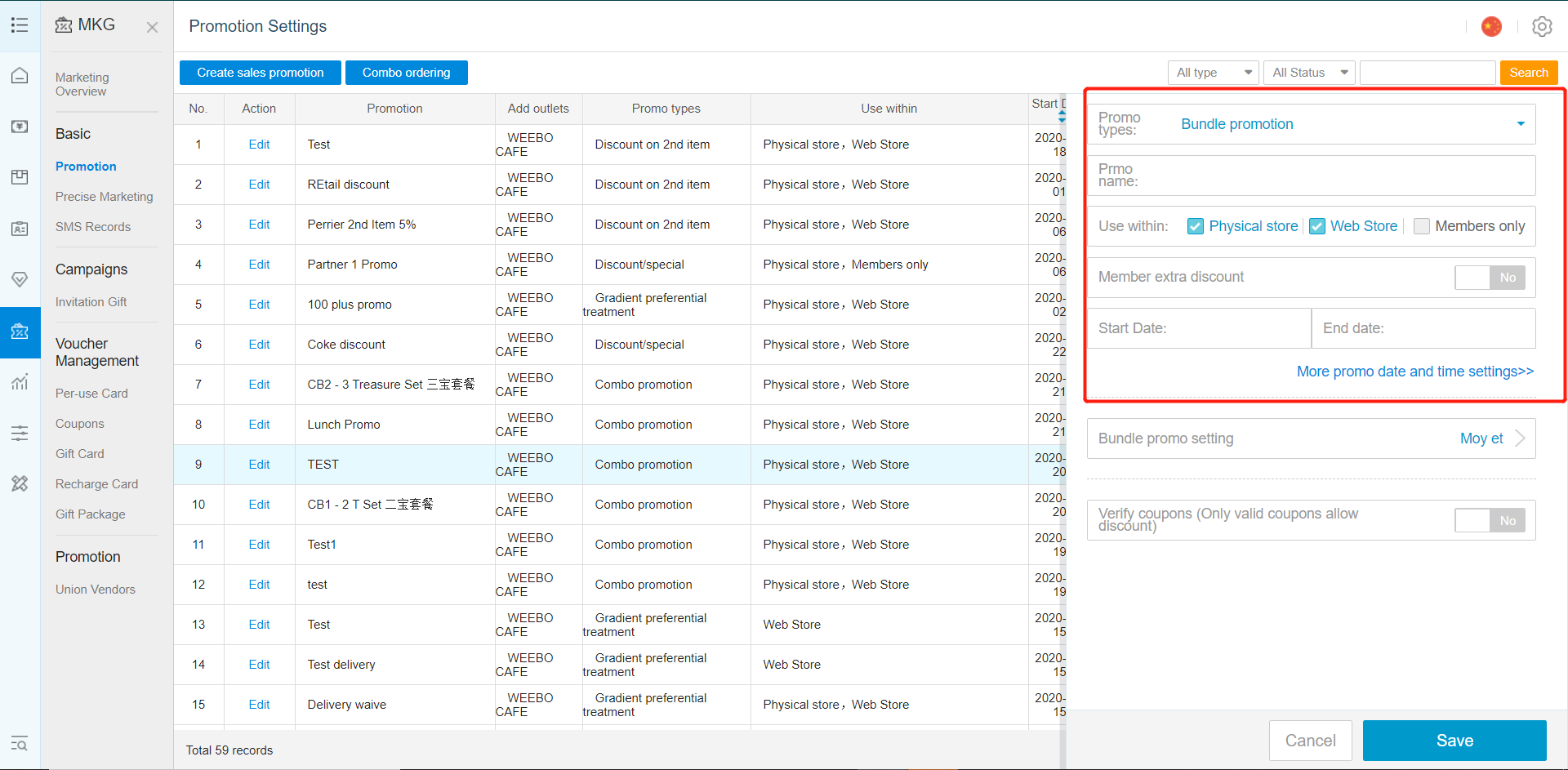 4. New Option Settings For Add Promotion
添加促销的新选项设置
Type: Select Type Of Promotion To Add
类型:选择要添加的促销类型
A. Discount Promotion
折扣促销
B. Set Promotion
套餐促销
C. Cash Discount With Min. Spending
满额现金折扣
D. Exchange Promotion
兑换促销
E. Bundle Promotion
捆绑促销
F. Discount On 2nd Item
第二件折扣
Promo Name: Name For Easy Referencing
促销名称:便于识别的名称
Use Within: Location Where Promotion Will Be Applied, And If Members Only, Or Anyone Can use
使用范围:促销适用地点,以及仅限会员或所有人可用
Start Date: / End Date: Start And End Date Of Promotion Period
开始日期 / 结束日期:促销活动的起止日期
E. Bundle Promotion
捆绑促销
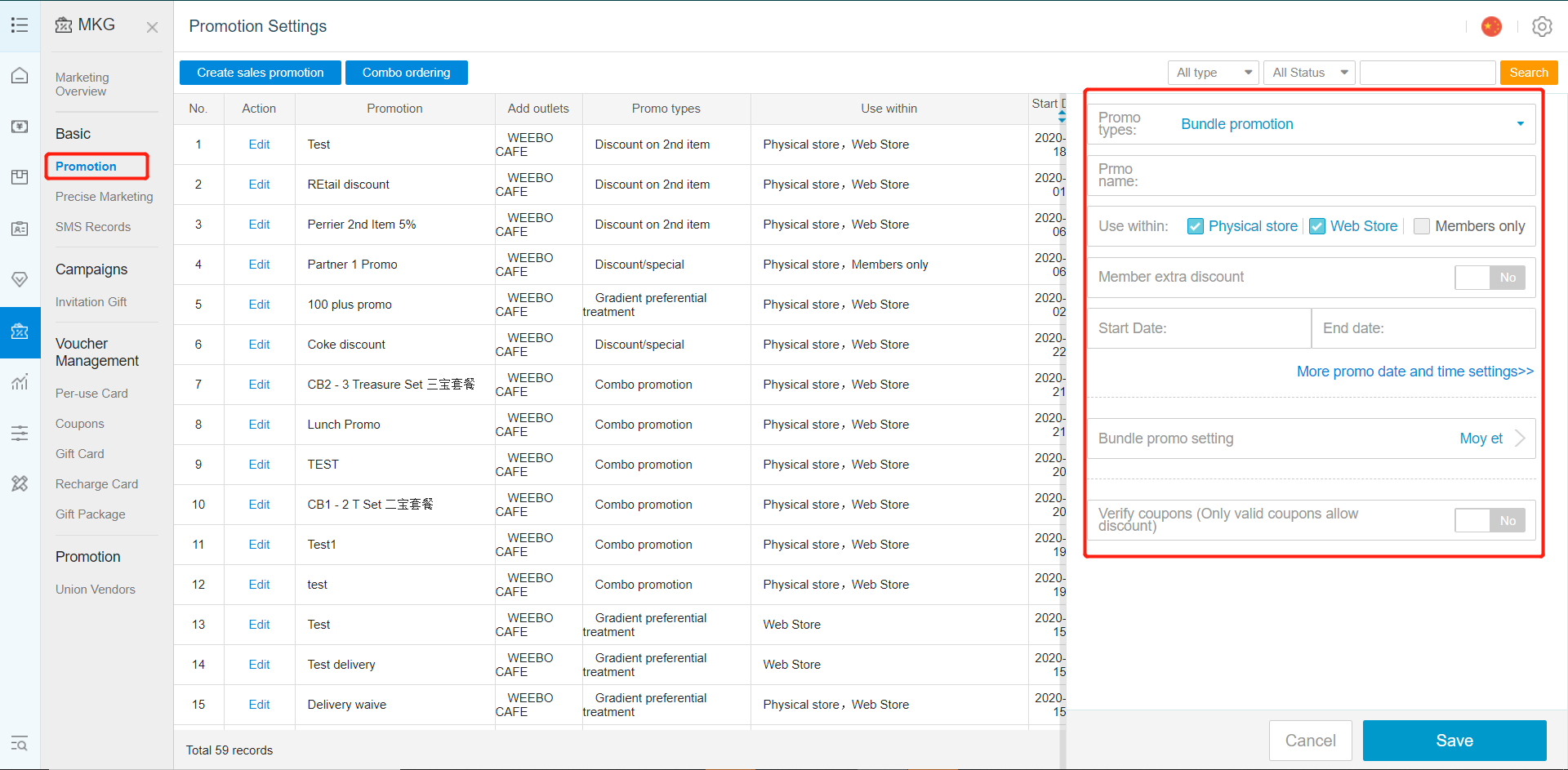 Bundle Promo Setting: Select Items To Be Added Into A Group; Sales And Promotional Item(s)
捆绑促销设置:选择要加入组合的商品,包括销售商品和促销商品
Example, if you buy a Burger and a drink (sales item), there will be a free drink (promotional item).
示例:购买一个汉堡和一杯饮料(销售商品),将赠送一杯饮料(促销商品)
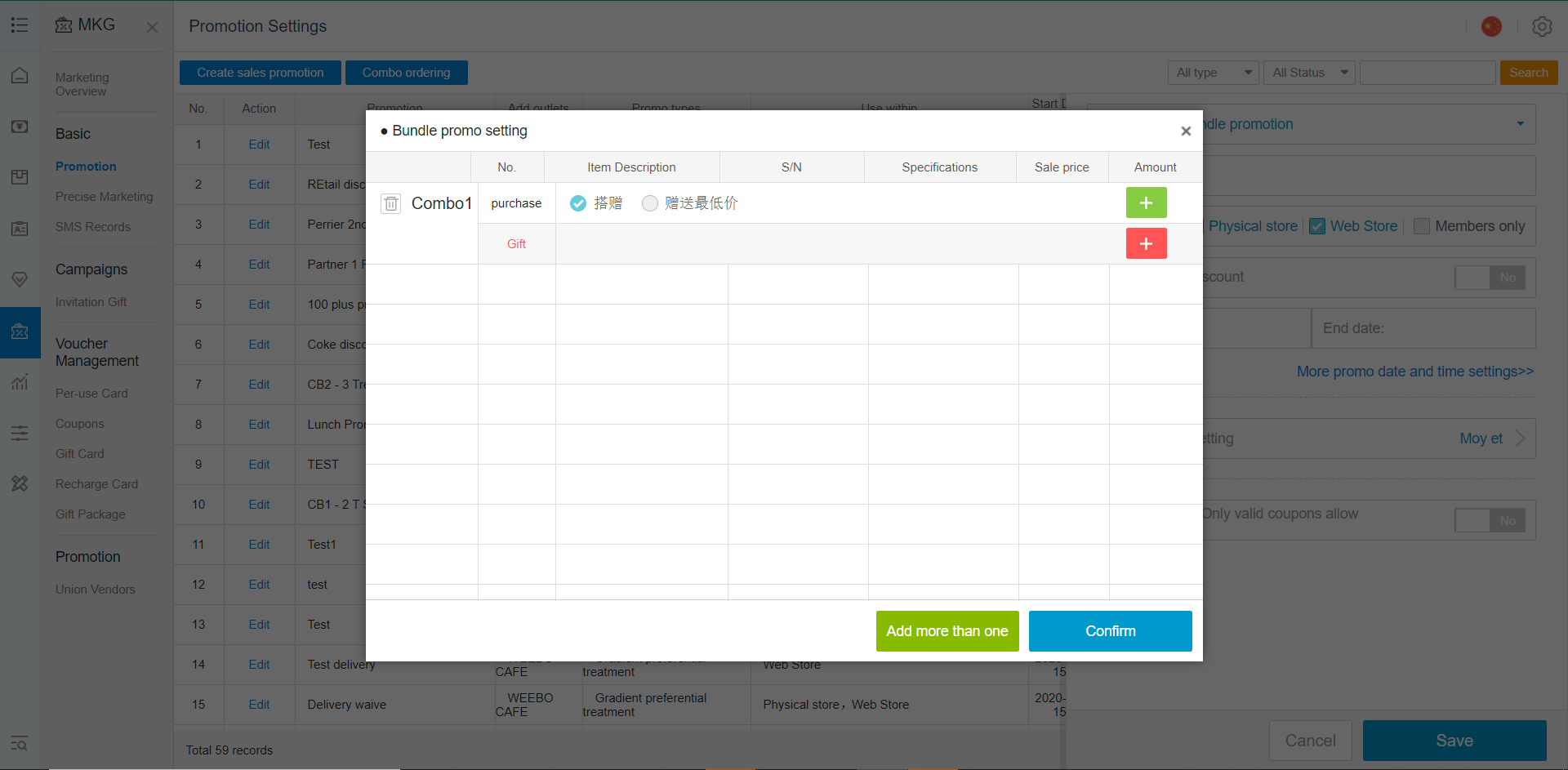
Choose Bundle set : Buy Burger Free Fries ( Fixed Combo)
选择固定套餐:买汉堡送薯条(固定组合)
Choose Free the cheapest item : Buy any item you set , will free on the cheapest item
选择赠送最便宜商品:购买任意设置的商品,将赠送最便宜的商品
Bundle set
套餐设置

Green Button : to add the main course
绿色按钮:添加主菜
Red button : to add the free item
红色按钮:添加赠品
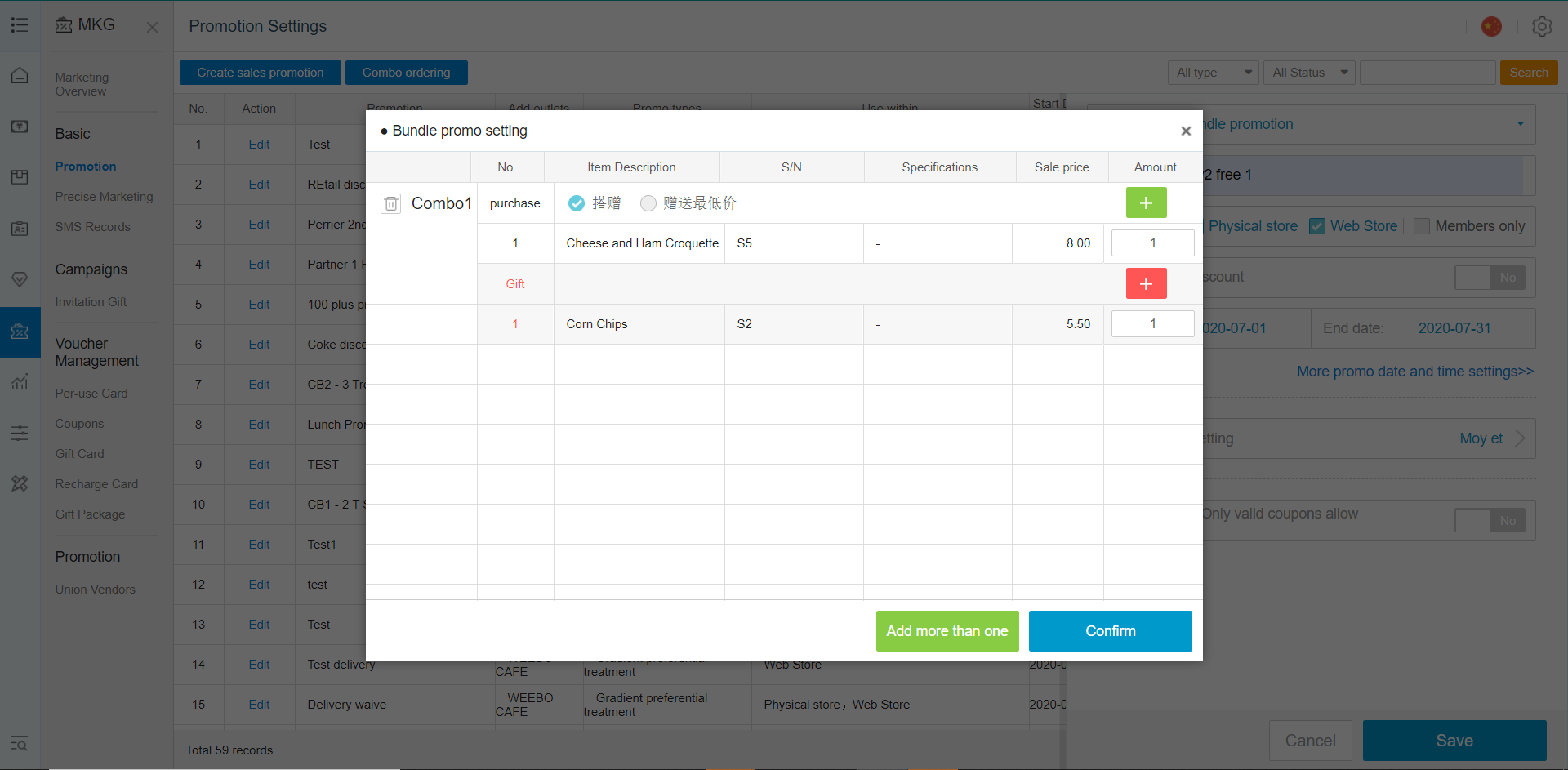
Example, A Purchase Of Viva Mexico and free Gangnam Style Bowl
示例:购买 Viva Mexico,赠送 Gangnam Style Bowl
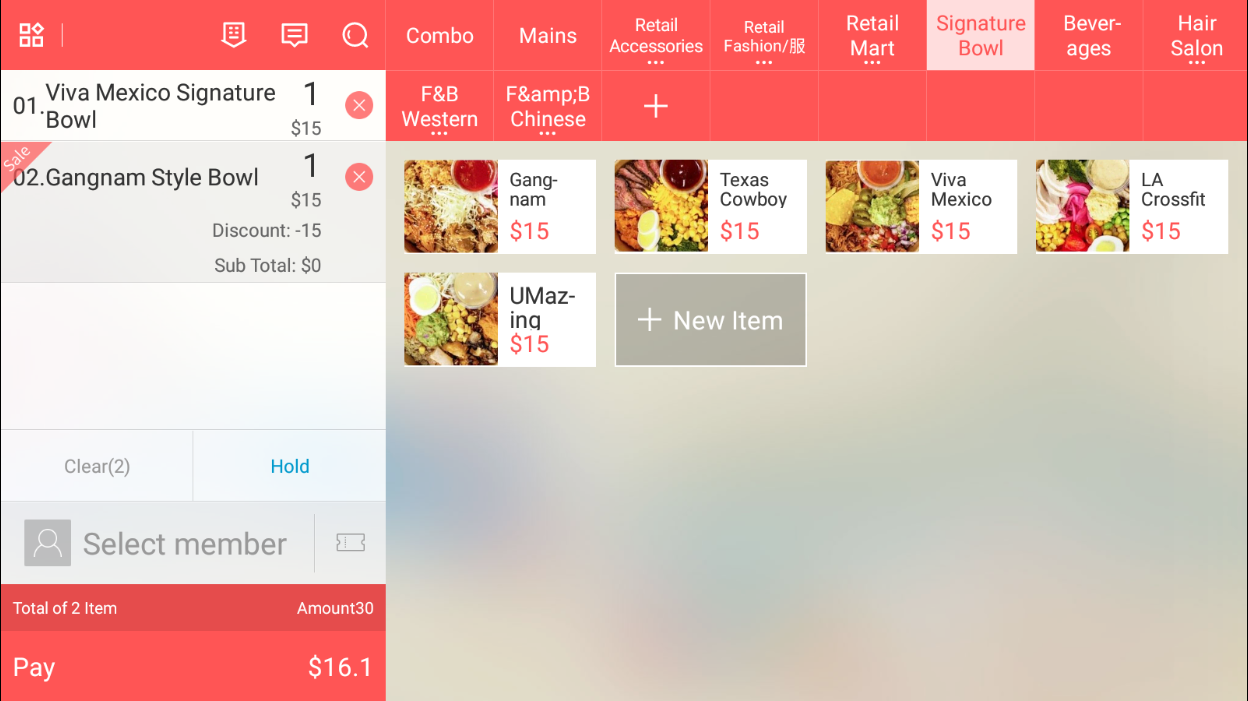 Selection of the 2 individual items will be detected and promo item will be discounted.
选择这两件商品后,系统将识别促销商品并自动应用折扣
Comments
Post a Comment